

Amazon Label Crop - Free Shipping Label Cropper
Upload your Amazon shipping label PDF, crop labels by SKU, remove invoices, choose your printer layout - and merge everything into one PDF with a single click. Free to use on any device, no signup required.
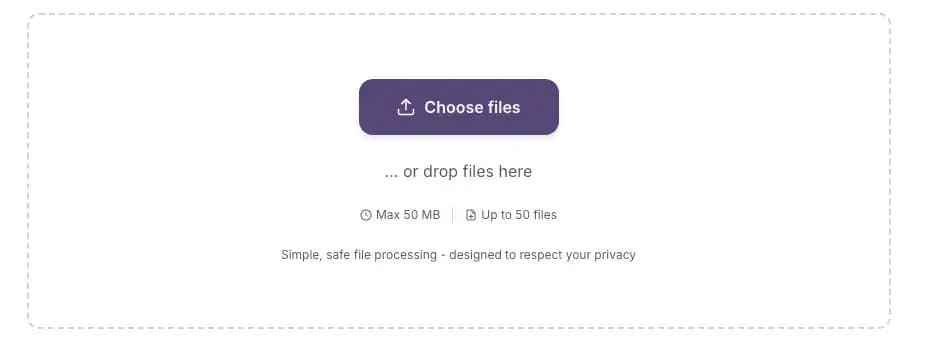
... or drop files here
Simple, safe file processing - designed to respect your privacy
Free to use, supported by non-intrusive ads. The tool loads and works immediately - no forced ad screens.
This free Amazon label crop tool takes your shipping label PDF straight from Seller Central and processes it entirely in your browser - no upload to a server, no queue, no waiting. Whether you need to crop Amazon labels from a 50-order morning batch or a 10,000-page sale event file, it runs at the same speed. Sort by SKU, remove invoices, pick 4×6 thermal or 4-up A4, and merge all your processed batches into one print-ready PDF. No login. Works on any device, including low-end phones and older laptops. If you also sell on other platforms, I Love Compress has a dedicated Flipkart label crop tool and a Meesho crop PDF tool that work the same way.
How to crop your Amazon labels online
Upload your labels PDF
Download your shipping labels PDF from Amazon Seller Central. Drag it into I Love Compress or click to browse. Add up to 50 label files at once for batch processing.
Set your options
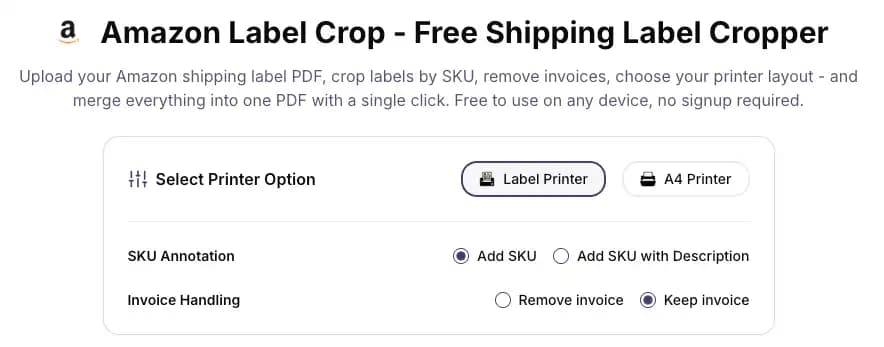
Choose thermal 4×6 or A4 printer layout. Select SKU annotation - print just the SKU or SKU with product description on each label. Toggle invoice removal on or off. The Amazon PDF crop settings take under 10 seconds to configure.
Click Crop
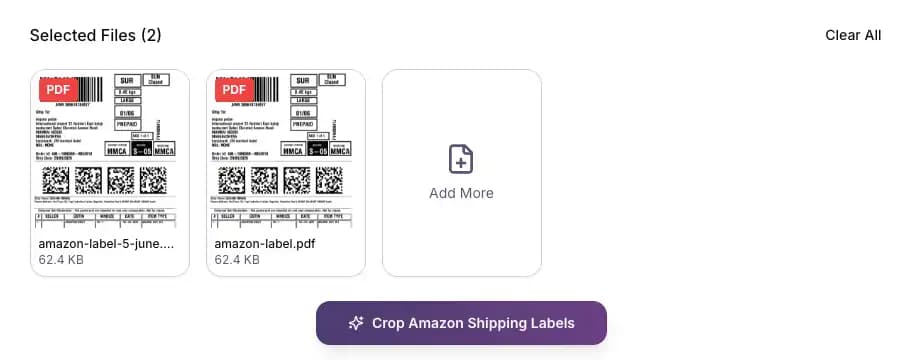
Hit the crop button. This Amazon PDF cropper runs entirely in your browser - no server processing, no timeout errors. A 1,000-page file takes a few seconds. A 10,000-page file still runs smoothly on low-end devices.
Download and merge
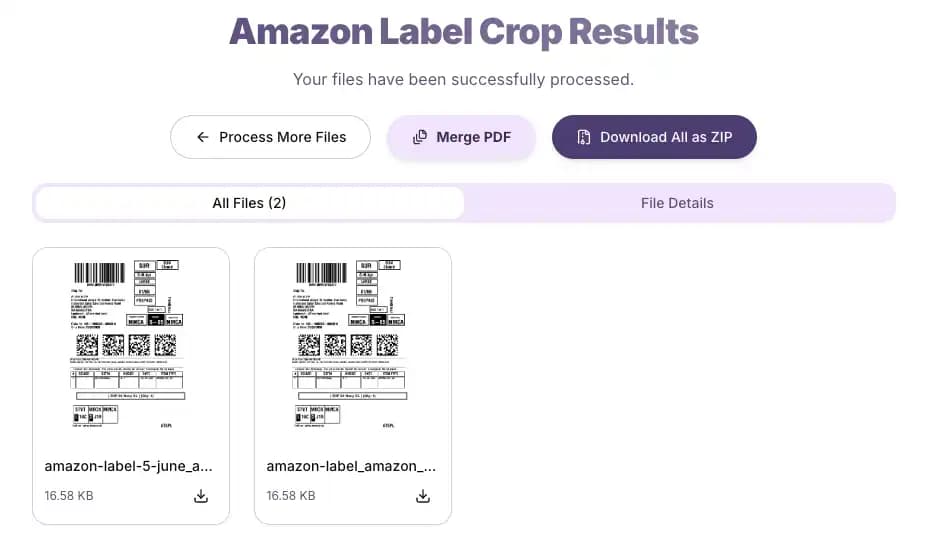
Download each processed file individually. Or hit the merge button to combine all your cropped label PDFs into one single file - ready to send to your printer in one job.
Why sellers use I Love Compress Amazon label cropper
| Feature | What it means for you |
|---|---|
| Crop and sort by SKU | Labels come out grouped alphabetically by SKU - packing teams work product by product, not order by order |
| Remove or keep invoices | One toggle strips every invoice page automatically - your team never accidentally ships a customer invoice |
| 4-up A4 layout | Four labels per A4 sheet - cuts paper usage by up to 75% on high-volume days |
| 4×6 thermal output | Perfect crop for thermal printers - no scaling required, no white borders, barcodes print at full size |
| SKU with description | Print the product name alongside the SKU for teams who don't have codes memorised |
| One-click merge | Crop multiple batches separately throughout the day, then merge all outputs into one file for a single print run |
| Works on any device | Browser-based processing - a 2016 Android phone handles it without trouble |
| No file storage | PDFs never leave your device - no server copy, no data exposure |
Built for high-volume sellers - no page limit, no freezing
Most Amazon PDF crop tools choke when you upload a file with hundreds of orders. I Love Compress does not. Whether you're processing 50 labels on a quiet Tuesday or clearing a backlog of 10,000+ pages after a sale, the tool handles it at the same speed. Everything runs in your browser - there's no server queue, no upload timeout, and no "file too large" error. Sellers who process multiple order batches per day use the merge feature to combine all their cropped PDFs at the end of the day, sending one clean file to the printer instead of managing separate downloads.
Situations this Amazon PDF crop tool solves
Your labels PDF from Seller Central is mixed with invoices
Amazon packages shipping labels and tax invoices in the same PDF file. Before printing, you need them separated. The invoice removal toggle strips every invoice page automatically - your packing team only ever sees labels.
Your packing team writes the SKU on each label by hand
The SKU annotation feature prints the product code directly on every label during the crop. No marker pens, no cross-referencing a spreadsheet mid-pack.
You're printing 200 orders and burning through paper
Switch to 4-up A4 layout. 200 orders becomes 50 sheets. Same barcodes, same readability, 75% less paper cost.
You process orders in batches throughout the day
Crop your morning batch, afternoon batch, and evening batch separately as they come in. At the end of the day, use the one-click merge to combine all three into a single PDF for one print run.
You're the only person on dispatch and working from your phone
I Love Compress runs in mobile Chrome and Safari. Upload your Amazon label PDF from your phone's file manager, crop it, and download - no desktop, no app installation needed.
You sell on Amazon, Flipkart, and Meesho and manage labels for all three
Each platform generates its own PDF format. Use the Amazon label crop tool for Amazon orders, the Flipkart label crop tool for Flipkart shipments, and the Meesho crop PDF tool for Meesho orders - same workflow across all three, no learning curve.
A typical dispatch day using I Love Compress
Here's how a real seller uses this Amazon crop PDF workflow from start to finish:
8:00 AM - Log in and Download
Log into Amazon Seller Central. Go to Orders → Manage Orders, select the morning batch, and download the shipping labels PDF. It comes as a combined file with labels and invoices mixed in.
8:05 AM - Crop with Options
Open I Love Compress Amazon label crop page. Drag in the PDF. Select: thermal 4×6, Add SKU, Remove Invoice. Click Crop. A 300-order PDF is done in under 10 seconds.
8:07 AM - Print and Pack
Download the cropped file. Send to the thermal printer. Labels come out sorted by SKU - packing team works product by product, no hunting between orders.
1:00 PM - Repeat for Batch 2
Afternoon orders are in. Repeat the same process for the second batch.
6:00 PM - Final Batch and Merge
Evening batch downloaded and cropped. Now click Merge - all three processed PDFs combine into one file. Send it to the printer once. Done.
Total time spent on label prep across the full day: under 5 minutes.
If your dispatch also includes Flipkart or Meesho orders, run those PDFs through the Flipkart label crop tool or the Meesho crop PDF tool in separate tabs - then merge all platform outputs together into one file before the print run.
Frequently asked questions about Amazon label crop
About the tool
Is this Amazon label crop tool free?
Yes, completely free. No subscription, no credit card, no watermark on output. Process 10 orders or 10,000 orders - same experience, no hidden costs. The tool is supported by non-intrusive ads that don't interrupt your workflow.
Do I need an account to use this Amazon label cropper online?
No account, no login, no email required. Open the page, upload your PDF, and start cropping immediately.
Can I crop Amazon labels online on my phone?
Yes. Upload from Chrome or Safari on Android or iPhone, process your labels, and download. Works on low-end phones too - no app installation needed. Bluetooth-print directly from your phone to a 4×6 thermal printer if needed.
Does it work on older or slower computers?
Yes. Processing runs locally in your browser - no heavy server dependency, no internet speed requirement after the page loads. A 4-year-old budget laptop handles 1,000-page PDFs without issue.
About file processing
How large a PDF can I upload to the Amazon PDF cropper?
There is no page limit. The Amazon PDF cropper handles 10,000+ page PDFs without crashing or freezing. Upload up to 50 files at once.
Can I upload multiple files to crop Amazon labels in one go?
Yes. Select up to 50 files in one session. Each is cropped separately. Then use the one-click merge to combine all outputs into a single print-ready PDF.
How does the merge feature work?
After cropping your labels, click the merge button to combine all processed PDFs into one file. Useful when you process multiple batches throughout the day and want one file for the print run.
Can I merge files I processed on different days?
The merge works within your current browser session. To merge files from different days, re-upload your previously downloaded PDFs alongside the new batch in a fresh session, then merge.
Does this tool store my Amazon label PDFs?
No. All processing happens in your browser. Your PDFs never leave your device. When you close or refresh the tab, everything is gone - no copy exists on any server.
Does it expose my customer data?
No. Since files process locally, no customer name, address, or order information is ever transmitted anywhere.
About the output
What size are the cropped labels?
Thermal mode outputs standard 4×6 inch (100×150mm) labels, compatible with Zebra, Godex, TSC, and most common thermal printers. A4 mode fits four labels per A4 sheet.
Will barcodes still scan after the Amazon PDF label crop?
Yes. The crop only removes whitespace and invoice pages - barcode data is completely untouched. Set your thermal printer to 300 DPI with darkness on high for clean, first-scan reads.
Can I print 4 Amazon labels on one A4 sheet?
Yes. Select A4 mode before clicking Crop and the tool arranges four labels per page automatically, cutting your paper usage by up to 75%.
How does SKU sorting work?
Labels are grouped and sorted alphabetically by SKU. All units of the same product come together in the output, so packing teams can work product by product instead of jumping between different items per order.
Can I print the SKU on the label itself?
Yes. Choose "Add SKU" to print the product code on each label, or "Add SKU with Description" to include the product name as well.
What is the difference between Keep Invoice and Remove Invoice?
Amazon packages shipping labels and tax invoices together in the same PDF. Remove Invoice strips those pages so your output has only labels. Keep Invoice leaves the file unchanged.
About printing and couriers
What printer settings should I use?
For thermal printers: 100% scale (not fit to page), media size 4x6 inch, darkness set to high. For A4: disable shrink to fit, margins at 0, print at 100% scale.
Why are my barcodes blurry after printing?
Three common causes: printer DPI set below 300, fit-to-page scaling enabled in the print dialog, or glossy label stock. Disable fit-to-page, print at 100% scale, switch to matte labels, and test with two different scanner apps.
The label prints with cut-off edges - how do I fix it?
Disable "fit to page" or "shrink to fit" in your printer dialog. Set margins to 0 and enable borderless printing if your printer supports it. Confirm the paper size profile matches the label output size.
My courier scanner rejects the label. What should I check?
Confirm the barcode is printing at full size with no scaling applied, the quiet zone around the barcode is intact, and print contrast is high. Also verify you're using the correct label format for your assigned courier.
Does this work with Delhivery, Ecom Express, Shiprocket, or Amazon Easy Ship?
Yes. The tool crops whatever PDF Amazon Seller Central generates, regardless of which courier or fulfilment service you've selected for the order.
About Amazon Seller Central
Where do I download the shipping label PDF from Amazon?
In Seller Central: Orders → Manage Orders → select your orders → Print Labels. Amazon generates a combined PDF with labels and invoices together. Upload that file directly to I Love Compress.
Does this work for Amazon Easy Ship and Self-Ship labels?
Yes. Both Easy Ship and Self-Ship generate standard label PDFs from Amazon Seller Central that this tool processes correctly, regardless of the courier assigned.
Can I use this for FBA labels?
This tool is built for Amazon Merchant Fulfilled labels - Easy Ship and Self-Ship. FBA shipment labels follow a different format and are not what this tool is designed for.
I process orders in multiple batches throughout the day. What's the fastest workflow?
Crop each batch as it comes in during the day using the pdf crop amazon workflow. At the end of the day, upload all previously downloaded cropped files plus your final batch, and merge them into one file for a single print run.
Crop Your Amazon Labels & Extract SKUs Now
Looking for a free Amazon PDF label crop tool that doesn't break on large files or push ad screens in front of the tool? I Love Compress is it. The PDF cropper for Amazon labels runs entirely in your browser - no forced interruptions, no paywalls mid-session. Use it as your daily amazon crop pdf workflow or pull it up on your phone between courier pickups. Upload your file, set your options, and your labels are ready in seconds. Selling on Flipkart or Meesho too? I Love Compress has you covered - use the Flipkart label crop tool and the Meesho crop PDF tool for those platforms.